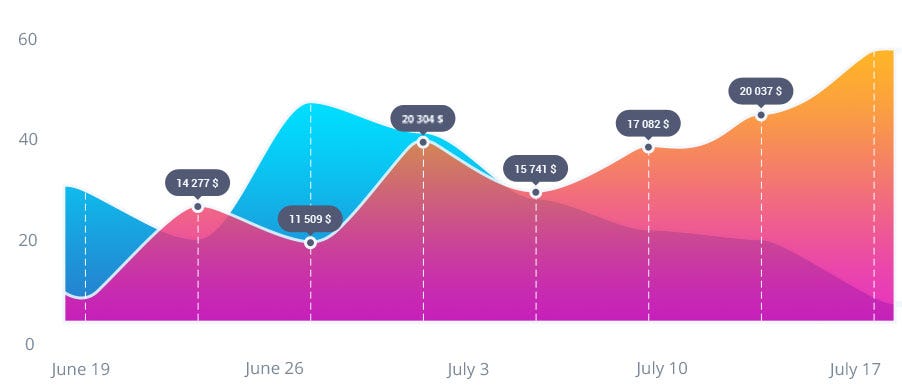
Chart.js API
with this tools we will
- Drawing a line chart create a canvas element in our HTML in the bode
add in the footer or js
<script> var buyers = document.getElementById('buyers').getContext('2d'); new Chart(buyers).Line(buyerData); </script>add labels
var buyerData = {
labels : ["January","February","March","April","May","June"],
datasets : [
{
fillColor : "rgba(172,194,132,0.4)",
strokeColor : "#ACC26D",
pointColor : "#fff",
pointStrokeColor : "#9DB86D",
data : [203,156,99,251,305,247]
}
]
}
- Drawing a pie charton body ,
<canvas id="countries" width="600" height="400"></canvas>add context
var countries= document.getElementById("countries").getContext("2d");
new Chart(countries).Pie(pieData, pieOptions);
supply a value and a color for each section:
var pieData = [
{
value: 20,
color:"#878BB6"
},
{
value : 40,
color : "#4ACAB4"
},
{
value : 10,
color : "#FF8153"
},
{
value : 30,
color : "#FFEA88"
}
];
add our options
var pieOptions = {
segmentShowStroke : false,
animateScale : true
}
Basic usage of canvas
thay have two attribute , width and height and the defult value are 300 pixels wide and 150 pixels high
Required tag
if we didnt put it it will be as fallback and dosent show
The rendering context (2d)
by add getContext() atribitte, after get element by id we can check (Checking for support) by getContext()
The grid
note : Normally 1 unit in the grid corresponds to 1 pixel on the canvas.
Drawing rectangles
three functions that draw rectangles on the canvas:
- fillRect(x, y, width, height)
- strokeRect(x, y, width, height)
- clearRect(x, y, width, height)
Drawing paths
path is a list of points, connected by segments of lines extra steps for path:
- First, you create the path.
- Then you use drawing commands to draw into the path.
- Once the path has been created, you can stroke or fill the path to render it.